
October 14, 2009 Written by Jeff Geiger and Mohsin Saeed
Agenda
- What is workflow?
- Benefits of implementing workflow
- What does it do?
- Sample process without workflow
- Sample process with workflow
- Existing workflow
- Where to look for workflow
- Components of workflow
- Creating a custom workflow process
What is Workflow
Workflow Management System
“A system that defines, creates, and manages the execution of business processes through the use of software…”
“90 percent of all time that used to perform tasks within the business setting is classified as transfer time, whereas 10 percent is used for the actual performance of those tasks.
Workflow Management Coalition (www.wfmc.org)
- In JD Edwards EnterpriseOne, workflow is a set of tools to automate formerly paper-based, manual processes by passing documents, information and tasks from user to user.
- It is based on a set of configurable procedural rules and can be customized
Benefits of Implementing Workflow
- Reduce elapsed time to execute a process end-to-end
- Reduce process costs
- Eliminate manual steps to increase process efficiency
- Improve process control
- Improve your user’s experience
- Increase the user’s confidence in the ERP system
- Provide flexibility to respond to changing business climate
- Ultimately increase customer satisfaction
What does it do?
- Communicate
- When an event takes place, workflow will send the correct user a message containing pertinent information and a short cut to the transaction that needs attention
- Automate
- Initiate other applications, process, events, job streams, integration, add-on programs, executables, etc.
- Approve and Control
- Follow approval routes and get user approval at key points (Think Sarbanes-Oxley)
Process With Workflow
Process Without Workflow


Existing Workflow
- Sales Order Entry
- Accounts Receivable
- Purchasing
- Equipment and Plant Maintenance
- HR/Payroll*Any application can be implemented into work flow, batch or interactive
Where to Look
- User Guides
- White Papers
- OMW – Workflow Objects search
- Processing options (workflow tab) on key applications
- Menu-G02
- My Oracle Support
Workflow Components
- Built-in Workflow Engine
- Pre-Built Workflow Processes
- Pre-Built Triggers
- Graphical Workflow Designer (Workflow Modeler)
- Notification Groups
- Email Integration
- Escalation Engine
- Workflow Monitor
- Workflow Auditor
- What the Components do:
- Enable
- Build
- Manage
- Monitor
- Measure
Creating a Custom Workflow Process:
Key Points to Remember:
- Mainly use Object Management Workbench (OMW) to develop the pieces
- Need to understand data structures
- Works like mail merge
- May need to modify JDE Objects
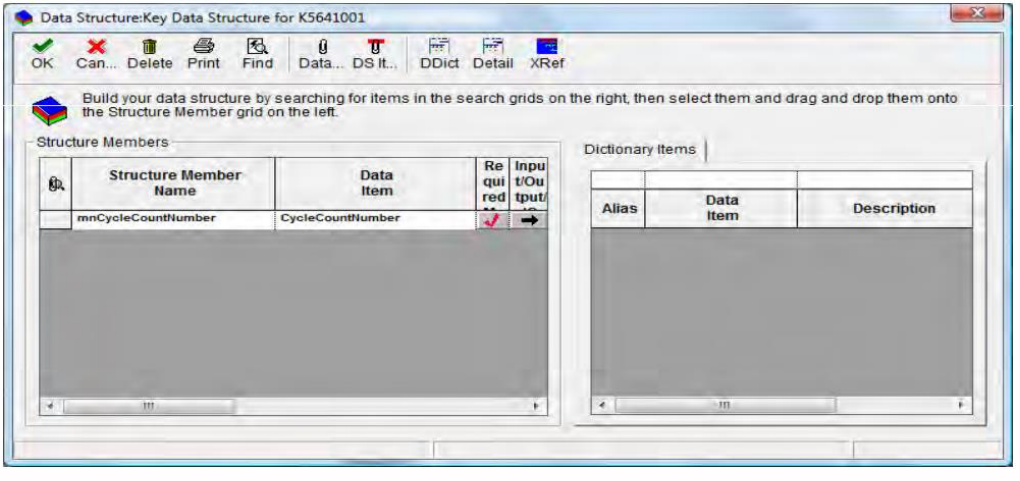
Step 1: Create the data structure for Key data
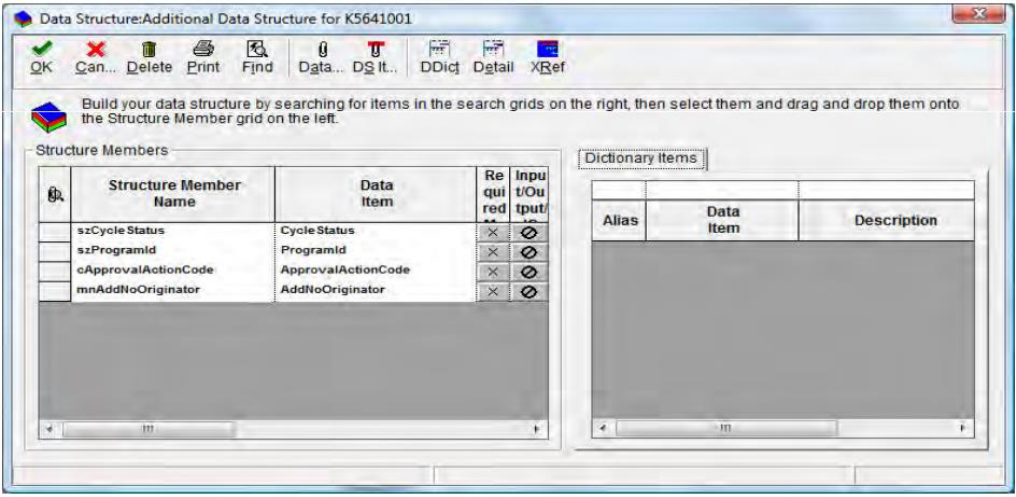
Step 2: Create the data structure for Additional data
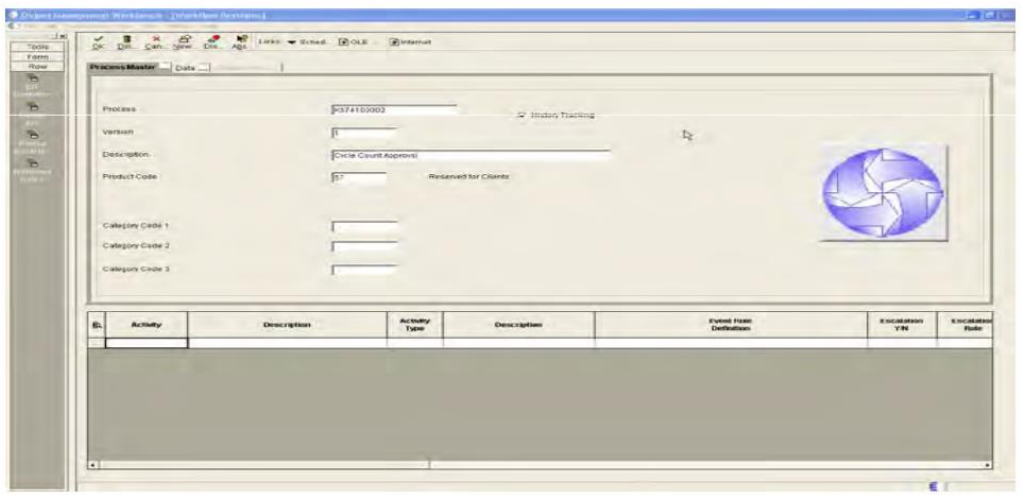
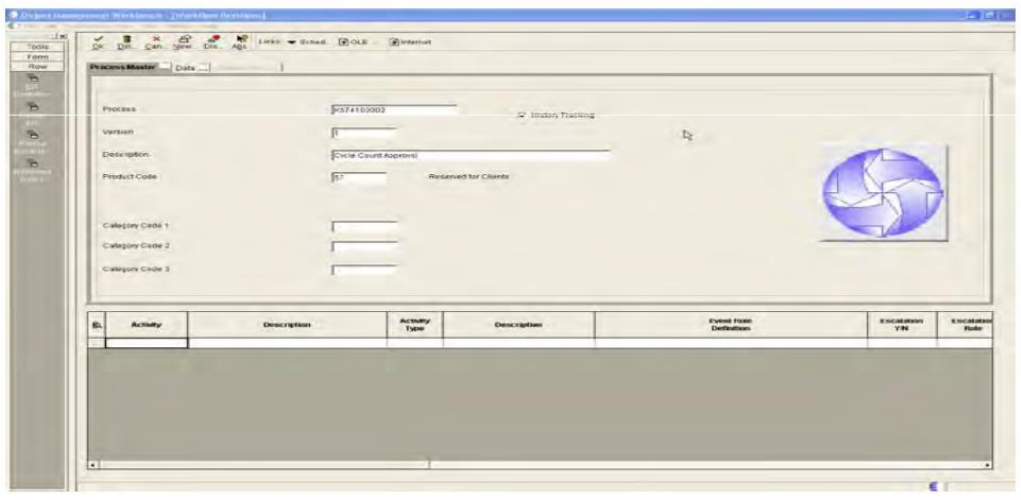
Step 3: Create the Workflow process Object
Step 4: Create message templates for approver and originator
Step 5: Attach data structures to workflow process
Step 6: Create activities within workflow process using OMW
Step 7: Attach logic to activities
Step 8: Create relationships between the Activities
Step 9: Activate the workflow process
Step 10: Workflow enable application
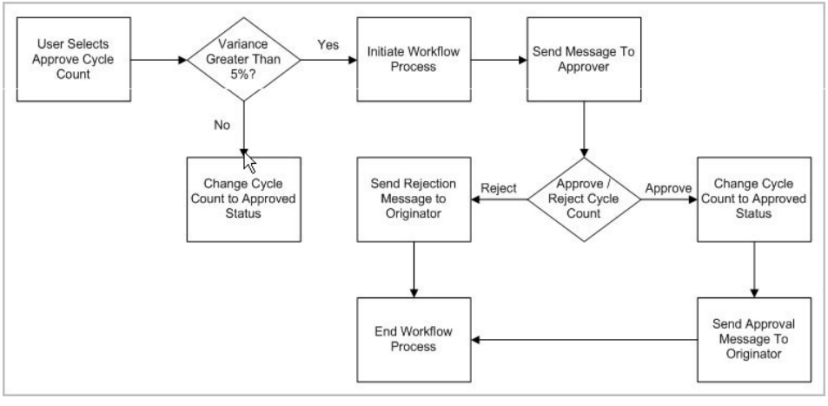
Example: Inventory Cycle count approval if the variance is over a certain amount
Step 1: Create the data structure for Key data
Step 2: Create the data structure for Additional data
Step 3: Create the Workflow process Object
Step 4: Create message templates for approver and originator
- Add the following messages using P92002 with the error level set to 3:
- LM5641004 – Request Cycle count &1 approval
- LM5641005 – Approval Cycle count &1
- LM5641006 – Rejected Cycle count &1
Step 5: Attach data structures to workflow process
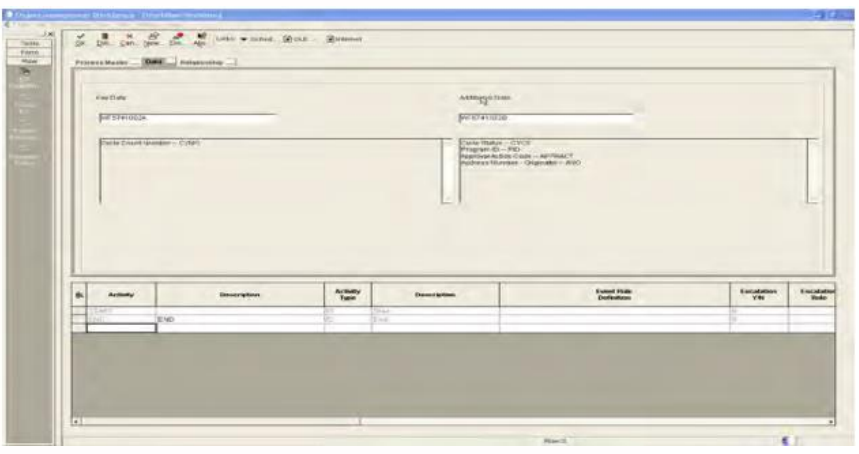
- Open the workflow process design through OMW. Select the data tab, assign the two data structures to the workflow process, and click OK
Step 6: Create activities within workflow process using OMW
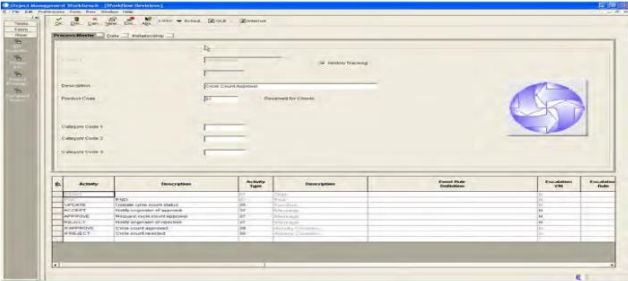
APPROVE – Message activity to send an approval message to the approver
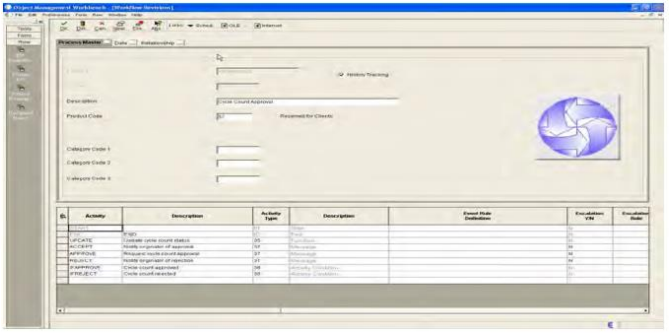
IFAPPROVE – Activity Condition to determine if approver accepted
IFREJECT – Activity Condition to determine if approver rejected
UPDATE – Function activity to update cycle count status if approved
ACCEPT – Message activity to send message to originator of approval
REJECT – Message activity to send message to originator of
Step 7: Attach logic to the activities
- Highlight the Approve activity and choose “ER Definition” (Event Rule Definition) from the Row Exit
- Choose the Send Message function and feine parameters for that function.
- On the Active parameter choose application P8705 form W98805A.
Step 8: Create relationships between activities
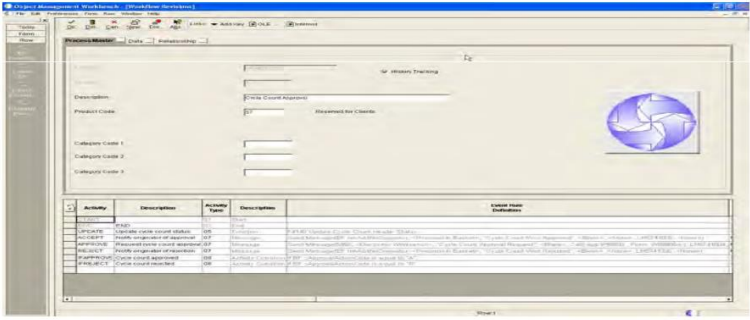
- Relationships indicate in which order and under what conditions activities occur.
- Choose Revise Relationships from the Form Exit.
Step 9: Activate the workflow process
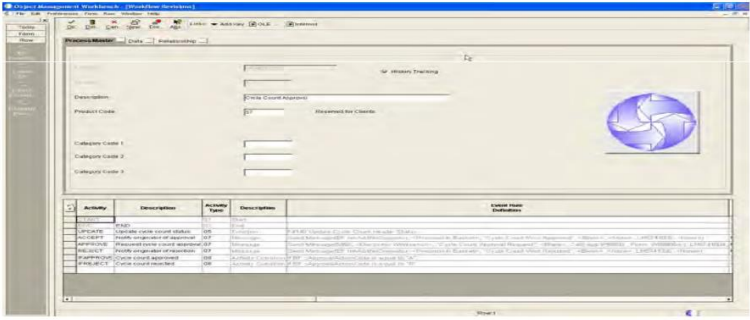
- From OMW select your workflow object and click on design
- Change the status to Activate in the Active parameter choose application P98805 form W98805A
Step 10: Workflow enable cycle count review application
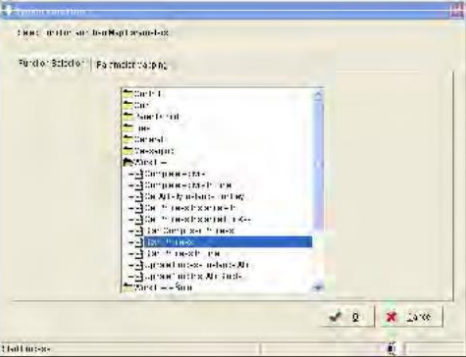
- Open P41240 in FDA (Form Design Aid) through OMW
- Open up Event Rules in the Approve Cycle Count Row Exit
- The work flow is launched by calling the Start Process System Function
- Map data structure parameters in the System Function call
Now You’re ready to use the workflow process
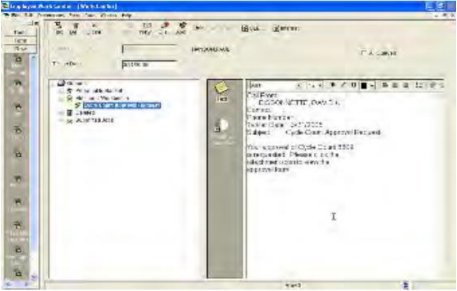
- As soon as a user selects Approve Cycle Count in the Cycle Count Review application and the variance is greater than 5%, the cycle count is routed for approval
- The approver will receive a message in their work center that the cycle count needs to be approved
Useful Workflow applications
- Process Activity Monitor (P98860)
- Allows you to review all activities and their status in each occurrence of your workflow process
- Manage performance of your workflow and track how long work takes to get completed.
- Purge Completed Processes (R98860P)
- Purge completed processes to free up database space
- Start Escalation Monitor (R98810)
- Escalate activities to next level
Summary
- Standard Workflow is already available in E1Xe and beyond
- Setting up a custom workflow process does take some planning and setup
- Both result in increased productivity, less mistakes, and more timely information